ShellBags Forensics: The Complete Guide for Investigators
What ShellBags are, where Windows stores them, what BagMRU and shell items prove, how to read their timestamps and where the artifact misleads analysts.
TL;DR. ShellBags are registry keys where Explorer remembers how each folder was displayed. To do that, it keeps a per-user tree (BagMRU) with one entry per folder the user navigated to: local folders, USB drives, network shares, the inside of ZIP files, folders that no longer exist. Each entry is a binary shell item that can carry the folder's name, its MFT entry and sequence number, and created/modified/accessed times. ShellBags prove navigation, not file access. Their timestamps need care. On Windows 7 and later, parse UsrClass.dat and NTUSER.DAT together.
ShellBags are the artifact I reach for when the question is "did this person ever look at that folder?" They answer it for removable media that was never seized, for a file share the suspect swears they never visited, and for a staging directory the attacker deleted before leaving. They are also one of the easiest artifacts to over-read. This guide covers both sides.
What ShellBags are, and why Windows keeps them
Windows Explorer remembers per-folder view preferences: icon size, sort column, details vs list view, window position. Microsoft never documented the storage format publicly, but the mechanism has been studied in depth, starting with Chad Tilbury's 2011 SANS post on Windows 7 ShellBags and Vincent Lo's 2014 SANS paper "Windows ShellBag Forensics in Depth".
To attach settings to a folder, Explorer has to identify the folder. It does that with a shell item ID list, the same structure the shell uses everywhere to address objects (see Microsoft's ITEMIDLIST and SHITEMID documentation). The side effect is what makes the artifact valuable: a folder that has been navigated to gets an entry in the user's registry, and that entry stays after the folder, the drive, or the share is gone.
Two structures work together:
| Structure | What it holds | Forensic use |
|---|---|---|
BagMRU | A tree of keys mirroring the folder hierarchy. Each key has numbered binary values (one shell item per child folder), an MRUListEx ordering and a NodeSlot. | Reconstructs the paths the user browsed, the order of recent use, and timestamps. |
Bags | Numbered keys, one per NodeSlot, holding view settings (Shell / ComDlg subkeys). | Shows a folder had view state saved; rarely needed to rebuild paths. |
Where they live
On Windows 7, 10 and 11, the bulk of the data is in the user's UsrClass.dat, with a second, smaller tree in NTUSER.DAT:
| Hive | File on disk | Key |
|---|---|---|
| UsrClass.dat | C:\Users\<user>\AppData\Local\Microsoft\Windows\UsrClass.dat | Local Settings\Software\Microsoft\Windows\Shell\BagMRU and ...\Shell\Bags |
| NTUSER.DAT | C:\Users\<user>\NTUSER.DAT | Software\Microsoft\Windows\Shell\BagMRU and ...\Shell\Bags |
| NTUSER.DAT (Windows XP) | C:\Documents and Settings\<user>\NTUSER.DAT | Software\Microsoft\Windows\ShellNoRoam\BagMRU (and Shell\BagMRU) |
The full per-version breakdown, including the Wow6432Node variant and how to collect locked hives, is in where ShellBags are stored and how to collect them.
How a path is rebuilt
The BagMRU key is the root. Its values 0, 1, 2... are shell items for top-level namespace objects: typically My Computer, Network, a user's profile folder, Recycle Bin. Each numbered value has a subkey with the same number, and that subkey describes the children of that item, recursively. Joining the item names along a branch gives the absolute path. From the site's synthetic sample (fictional data):
BagMRU\0          -> My Computer          (root folder item, GUID 20D04FE0-...)
BagMRU\0\1        -> E:                   (volume item)
BagMRU\0\1\0      -> exfil                (file entry item, directory)
BagMRU\0\1\0\0    -> finance_2026         (file entry item, directory)
                  => My Computer\E:\exfil\finance_2026
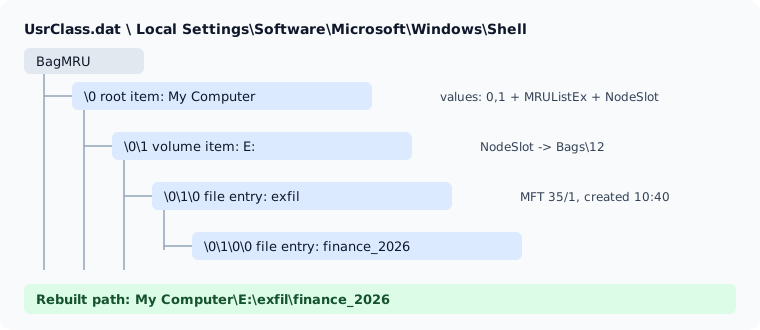
The item types matter. A root item is identified by a known folder GUID, a volume item carries a drive letter, a file entry item carries the 8.3 name, the long name, and usually an MFT file reference. A network item carries a UNC string such as \\FILESRV01\Finance. The byte-level layout is covered in the shell item format explained.
What a ShellBag entry tells you
For each folder, a good parser gives you:
- The absolute path at the time of browsing, including drive letter or UNC path.
- The shell item type: volume, directory, network location, control panel item, known folder, archive content.
- Embedded file system metadata from the directory entry (the 0xBEEF0004 extension block): created, modified and accessed times as FAT timestamps with 2-second resolution, and on NTFS the MFT entry and sequence number.
- Registry metadata: the key's LastWrite time, the entry's position in the parent's MRUListEx, the NodeSlot, and the number of child folders.
The embedded times describe the folder itself, captured when the shell item was created. Per 4n6k's testing, they are not refreshed on later visits. The registry times describe when the BagMRU keys changed. Mixing up the two is the single most common ShellBags reporting error. The timestamps article works through the logic with a concrete example.
What creates a ShellBag
Folder navigation through the Windows shell. That includes Explorer windows and, per the testing summarised by 4n6k, common Open/Save dialogs. The same source notes that on Windows 7 selecting a folder can be enough; you do not always have to enter it. Each parent of a browsed path gets its own entry too, because the tree has to contain it.
What does not create one: cd and dir in a command prompt, PowerShell Get-ChildItem, scripts, most third-party file managers, and remote tools that enumerate files through APIs rather than the shell. An attacker who stages data from a console leaves no ShellBags. An attacker who opens Explorer on a share does.
Investigative value
These are the questions ShellBags answer well:
- Removable media. A folder under
E:\orF:\proves browsing of a volume that may be long gone. Pair the drive letter with USB device history from the SYSTEM hive and event logs (the EVTX parser and registry parser cover those). - Network shares. Network location items keep
\\server\sharenames. Browsing\\FILESRV01\Finance\Payrollby a service account is a finding in itself. - Archives. Explorer browses inside ZIP files as if they were folders, and browsing inside one leaves entries below the archive's own item. Windows 11 also opens RAR, 7z and tar variants natively since the October 2023 update KB5031455; how those traces look is less documented, so test on your target build. See ShellBags and ZIP files.
- Deleted folders. The entry outlives the directory. The MFT entry and sequence number let you check whether the record was reused. See finding deleted folders with ShellBags.
- Knowledge. In insider cases, ShellBags can show that a user navigated to the folder where contested files were stored, which matters when someone claims they did not know the folder existed.
Where ShellBags mislead
- Navigation is not file access. A ShellBag proves the folder was browsed or selected, not that
payroll.xlsxinside it was opened. For file opens, look at LNK files, Jump Lists and RecentDocs. The comparison is in ShellBags vs LNK files, Jump Lists and RecentDocs. - Key LastWrite is not "last opened". A key's LastWrite changes when its children change. Only the child in first position of the parent's MRUListEx can be tied to the parent's LastWrite.
- Embedded times are not access times. They are the folder's own file system times as they were when the item was first recorded.
- Absence is weak evidence. Console activity, cleaning tools, profile resets and hives copied without their transaction logs all remove or hide entries. See ShellBags limitations and anti-forensics.
A minimal workflow
- Collect
NTUSER.DATandUsrClass.datfor each user with their.LOG1/.LOG2files, using a raw copy method (KAPE, Velociraptor, FTK Imager, or a disk image). - Replay transaction logs if the hive is dirty.
- Parse both hives, keep the account attribution (SID from the UsrClass root key, user name from NTUSER).
- Triage: other drive letters, UNC paths, archive paths, user-writable staging folders (
ProgramData,AppData,Temp,Users\Public). - Build a timeline from MRU-derived "last interacted" times and cross-check with USN journal, LNK and event log data before stating anything in a report.
You can run steps 3 and 4 in your browser with the ShellBags Parser: drop the hives, a folder or a KAPE ZIP, and it rebuilds the tree, flags other drives, network locations, archives and user-writable folders, and exports CSV or JSON. Nothing is uploaded. The step-by-step guide walks through a session with the built-in sample.
Further reading
- libyal libfwsi: Windows Shell Item format, the reference specification for shell item bytes.
- Chad Tilbury, SANS: Windows 7 ShellBags.
- Vincent Lo, SANS white paper: Windows ShellBag Forensics in Depth.
- 4n6k: ShellBags forensics, addressing a misconception.
- Velociraptor: Windows.Forensics.Shellbags.
FAQ
What do ShellBags prove?
That a specific user account navigated to, or selected, a folder in Explorer or a common Open/Save dialog. They do not prove that any file inside the folder was opened.
Do ShellBags survive when the folder is deleted or the USB drive is removed?
Yes. The BagMRU entry stays in the user's hive until Windows or a cleaning tool removes it, so folders on unplugged drives, disconnected shares and deleted directories remain visible.
Which hive should I parse, NTUSER.DAT or UsrClass.dat?
Both. Since Windows Vista and 7 most entries are in UsrClass.dat, but NTUSER.DAT keeps its own smaller BagMRU tree. Parse the pair together for each user.